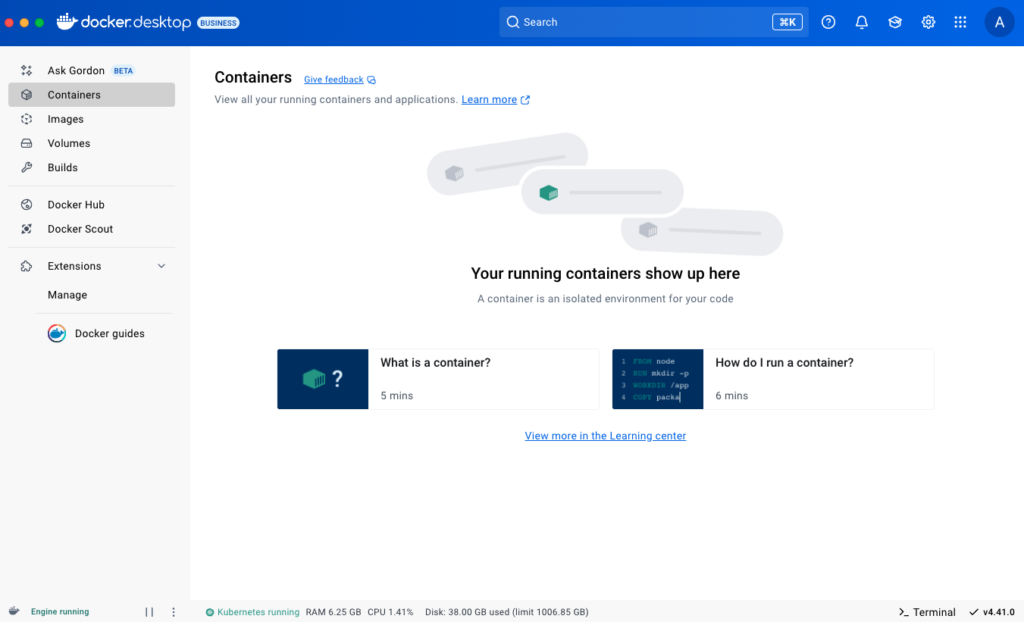
It provides a centralized interface to manage your [containers](container.md), [images](images.md), [volumes](volumes.md), and [builds](builds.md).

In addition, the Docker Desktop Dashboard lets you:

- Use [Ask Gordon](/manuals/ai/gordon/_index.md), a personal AI assistant embedded in Docker Desktop and the Docker CLI. It's designed to streamline your workflow and help you make the most of the Docker ecosystem.
- Navigate to the **Settings** menu to configure your Docker Desktop settings. Select the **Settings** icon in the Dashboard header.
- Access the **Troubleshoot** menu to debug and perform restart operations. Select the **Troubleshoot** icon in the Dashboard header.
- Be notified of new releases, installation progress updates, and more in the **Notifications center**. Select the bell icon in the bottom-right corner of the Docker Desktop Dashboard to access the notification center.
- Access the **Learning center** from the Dashboard header. It helps you get started with quick in-app walkthroughs and provides other resources for learning about Docker.